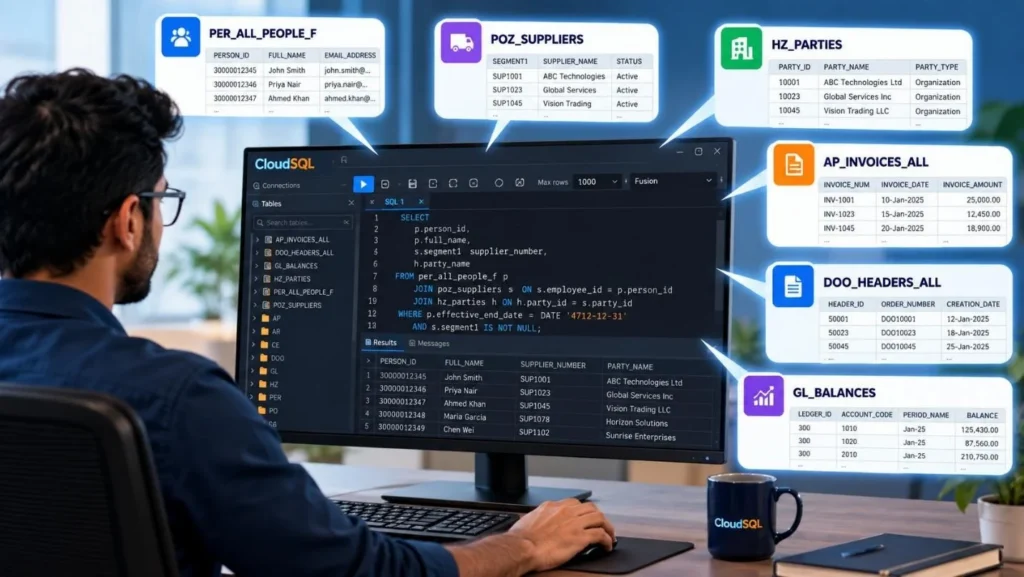
When working with Oracle Fusion SQL, you often need to check what data is actually stored in a table before you can understand why a query is not returning the expected results.
You may be working on a query with multiple joins, filters, and conditions, and something does not look right. Is the problem with PO_HEADERS_ALL? Is a join to POZ_SUPPLIERS_V causing the issue?
To find out, you normally have to stop what you are doing, write another SQL query, run it, and then return to your original query. It interrupts your workflow and makes troubleshooting Oracle Fusion SQL more time-consuming.
That’s the exact gap CloudSQL’s Quick Query feature closes.
The Old Way: Switching Worksheets Just to Check One Table
Without a built-in way to do this, developers typically fall back on one of two workarounds:
- Opening a new SQL worksheet and manually typing a SELECT * FROM query for the table they want to inspect.
- Scrolling back and forth between the original query and a separate tab, trying to keep track of which table’s data they’re actually looking at.
Neither approach is difficult but both interrupt your flow. And when you’re doing it for the fifth table of the day, it adds up to a lot of lost time for something that should take one click.
Introducing Quick Query
Quick Query lets you preview any table’s row data directly from inside your existing SQL, right where it already appears in your FROM clause. No new worksheet, no retyping the table name, no separate SELECT statement. Just point at the table you’re curious about and see its data instantly.
How Quick Query Works?
Quick Query makes it easy to explore table structures and retrieve data directly from your SQL worksheet without writing separate queries. Follow these five simple steps to preview table data, adjust row limits, and access the information you need faster.
Step 1: Spot the Table in Your FROM Clause
Write your SQL as usual. Any table listed under the FROM clause for example per_all_people_f, po_headers_all, or poz_suppliers_v is fair game for a quick look, even before you’ve finished writing the rest of the query.
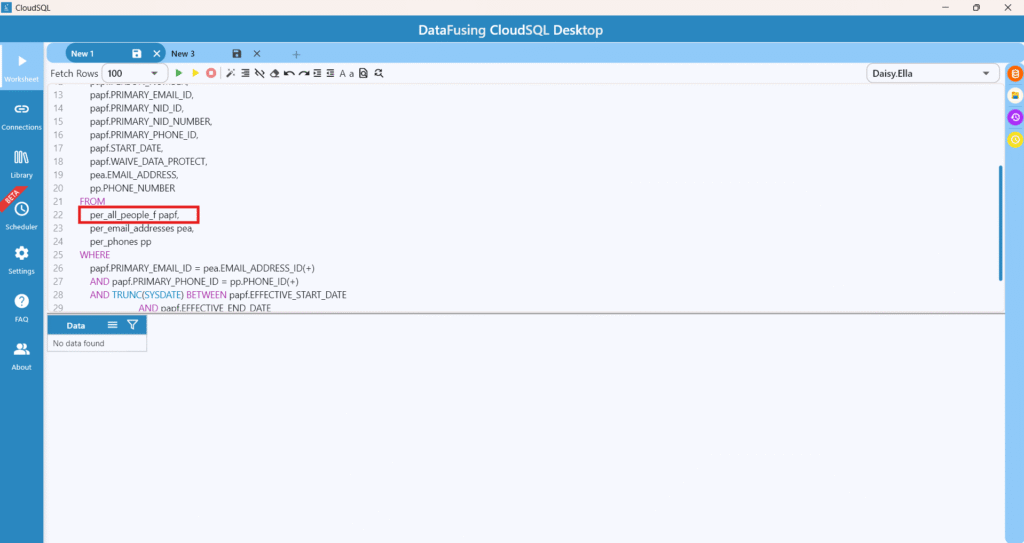
Step 2: Right-Click on the Table Name
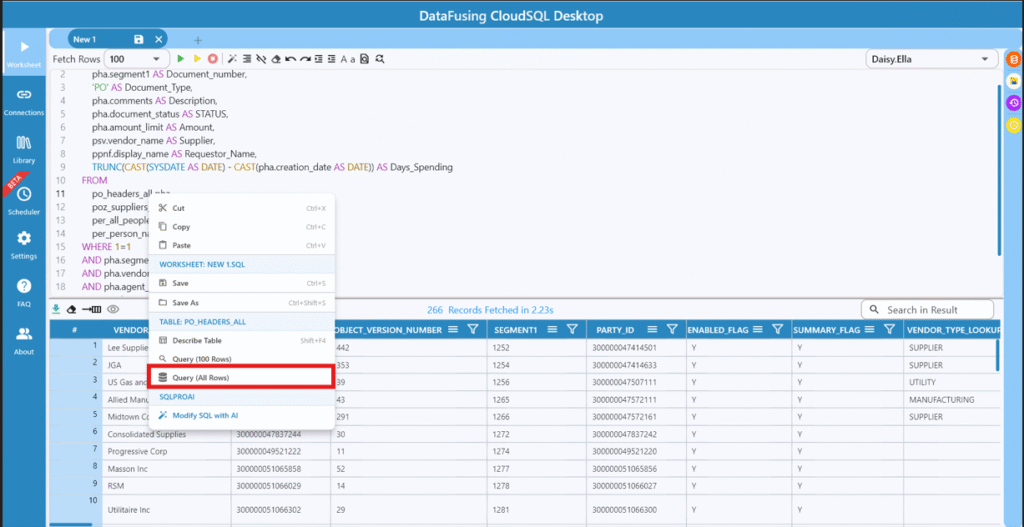
Right-click directly on the table name in your query editor. CloudSQL recognizes it as a table reference and opens a context menu with table-level actions including Describe Table and the two Quick Query options.
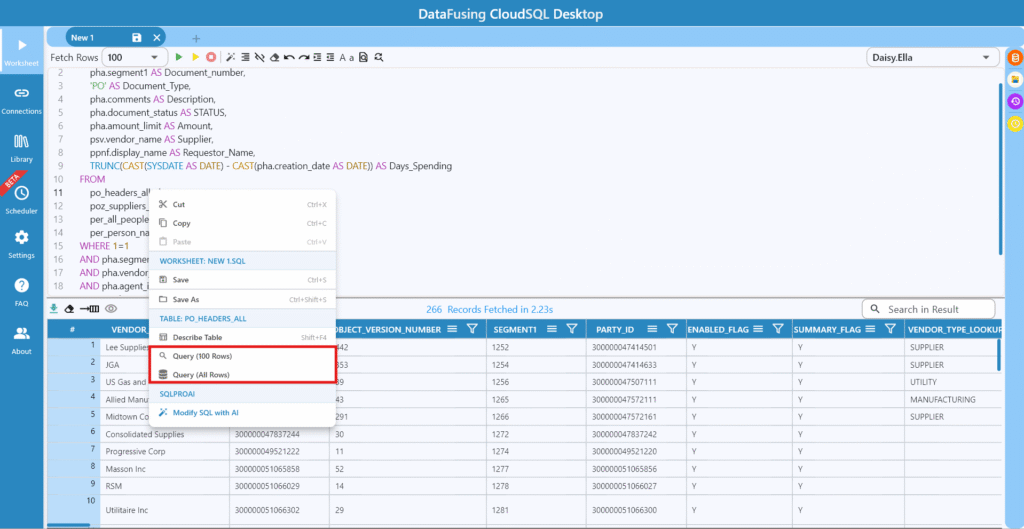
Step 3: Choose Query (100 Rows) or Query (All Rows)
Two options handle most situations:
- Query (100 Rows): A fast, lightweight preview of the table’s structure and a representative sample of data.
- Query (All Rows): The complete data set for that table, useful when you need the full picture rather than a sample.
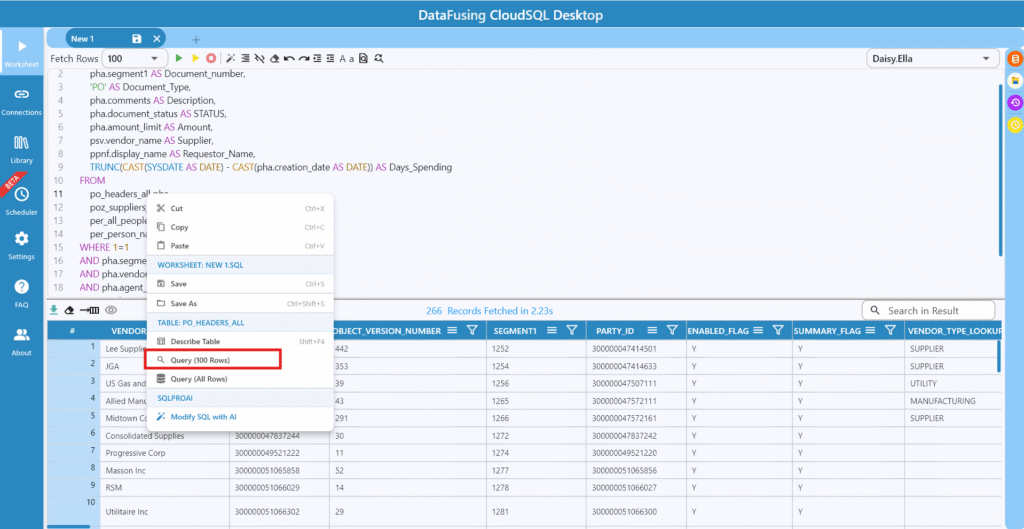
Step 4: Adjust the Default Row Limit if You Need To
Prefer a different sample size than 100? The Fetch Rows dropdown at the top of the worksheet lets you set the default to 1000, 10000, or All, so Query (100 Rows) can just as easily become Query (1000 Rows) depending on how you’ve configured it.
Step 5: Review the Result Instantly
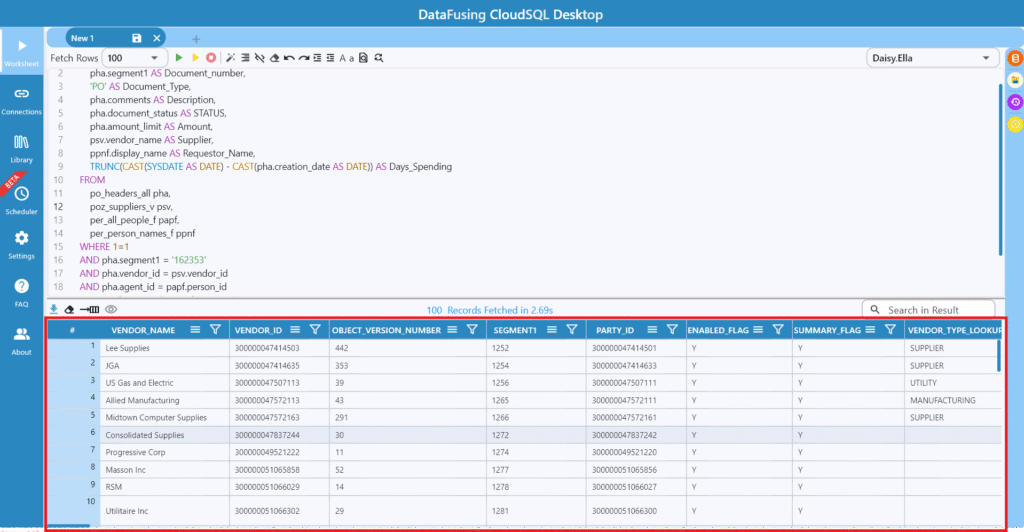
CloudSQL runs the query in the background and returns the table’s headings and row data in the results panel the same panel your original query already uses. You get the answer to “what’s actually in this table” without ever losing your place in the SQL you were writing.
A Quick Reference
Here’s what each part of the Quick Query experience actually does:
| Action | What It Does |
| Query (100 Rows) | Returns a fast, capped preview of the selected table — ideal for a quick sanity check while you’re still writing your query. |
| Query (All Rows) | Returns the table’s full data set, useful when a sample isn’t enough to confirm what you’re looking for. |
| Fetch Rows dropdown | Sets the row limit (100 / 1000 / 10000 / All) that Quick Query and your worksheet in general – uses by default. |
| Results panel | Displays the previewed table’s columns and rows in place, without opening a new worksheet or tab. |
Why This Matters for Oracle Fusion SQL Development?
Quick Query doesn’t change how SQL works it removes the friction around a step every developer already takes. Whether you’re validating a join condition, learning the shape of an unfamiliar Oracle Fusion base table, or just double-checking data before it lands in a report, you no longer need to break your concentration to do it.
It’s a small feature with an outsized effect on day-to-day productivity: less time spent context-switching between worksheets, more time spent actually reasoning about your query.
Must Read: Oracle Fusion Data Model & Table Structure Overview
Final Thoughts
Good developer tools tend to disappear into the background you stop noticing the friction because it’s no longer there. Quick Query is that kind of feature: a single right-click that turns “let me open another worksheet to check this table” into “let me just look.” With Quick Query, you can:
- Preview any table in your FROM clause without leaving your current SQL worksheet
- Choose a fast 100-row sample or pull the table’s complete data set
- Control the default fetch size across 100, 1000, 10000, or All rows
- Debug joins and conditions faster by checking raw table data on the spot
Want to try Quick Query on your own Oracle Fusion queries? Download the free CloudSQL desktop trial and see how much time it saves the next time you’re deep in a query.