Connecting your CloudSQL SQL Editor to your Oracle Fusion BI server can really speed up your report development and enhancements.
In this blog, we will explore why this feature is so beneficial and guide you on how to open and save your BI data models with CloudSQL.
Why Required?
Every Oracle BI report developer will be familiar with this scenario. You have been assigned a defect on a BI report, where the testing team says a record is not appearing as it should. So, you follow the steps.
| Without CloudSQL | With CloudSQL |
| ! Login to your Oracle Fusion Server. | P Open the SQL inside the data model directly from CloudSQL |
| ! Navigate to the BI catelog and find the BI data model | P Modify and test the SQL |
| ! Open the BI data model and copy the SQL. | P Save the SQL to BI server in a single click |
| ! Paste your SQL to your SQL editor (This could be anything from Notepad++ to CloudSQL with direct testing capabilities) | |
| ! Check the SQL, Fix the SQL and Test it. (taking several iterations) | |
| ! Copy the SQL back to BI data model and run it. |
Also Read: Background SQL Execution: A Faster Way to Handle Heavy Queries in CloudSQL
How to Open a BI Data Model From CloudSQL?
You can open an existing BI data model directly from CloudSQL and load its SQL into the worksheet to view and execute the underlying datasets.
Step 1: Open CloudSQL. Click on the New(+) icon.

Step 2: Select Open SQL from BI Report. Then select Browse BI. This will open up the BI catalog of the Oracle Fusion server you are connected to.

Step 3: Expand the folders and navigate to the location where your data model is stored.

Step 4: Click on the Data model that you want to open. Corresponding dataset(s) will be displayed in the SQLs section.

Step 5: Click Load to Worksheet to bring the SQL into the worksheet.

Step 6: View the SQL in the worksheet and execute it.

How to Save an SQL from CloudSQL Editor to BI Data Model?
CloudSQL allows you to save your SQL queries directly to a BI data model, making it easy to reuse them later without leaving the editor.
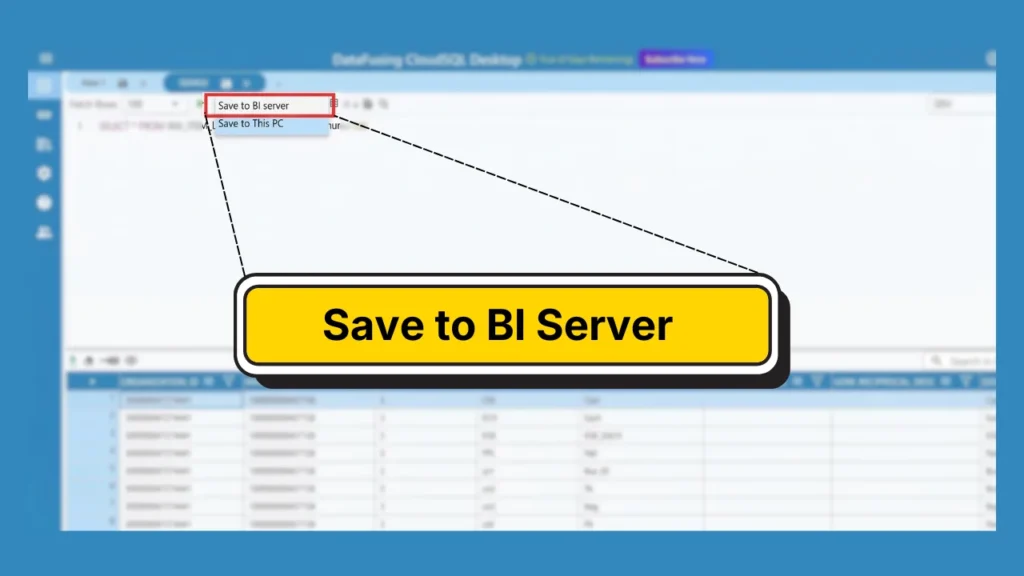
Step 1: Click the Save option at the top.

Step 2: Select Save to BI Server to store the SQL.

CloudSQL simplifies the process of opening, running, and saving SQL files right on your BI server. This not only helps your team work more efficiently but also reduces errors while saving and opening data models.
At DataFusing, we are constantly improving CloudSQL for you by adding more and more features. Click here to start a 30-day free trial today.
Must Read: How to Connect to Single Sign On Enabled Oracle Fusion from CloudSQL?